# 11th Floor Conference Room
The 11th Floor Conference Room is a fully-equipped Zoom Room to support teleconferencing and hybrid meetings. It has an HDMI input for connecting a laptop, in-room iMac for presentations, and a Blu-Ray player. The touch control pad is located to the right of the chalkboard near the rear exit door.
The touchpad has two main screens, the Crestron panel & Zoom Rooms.
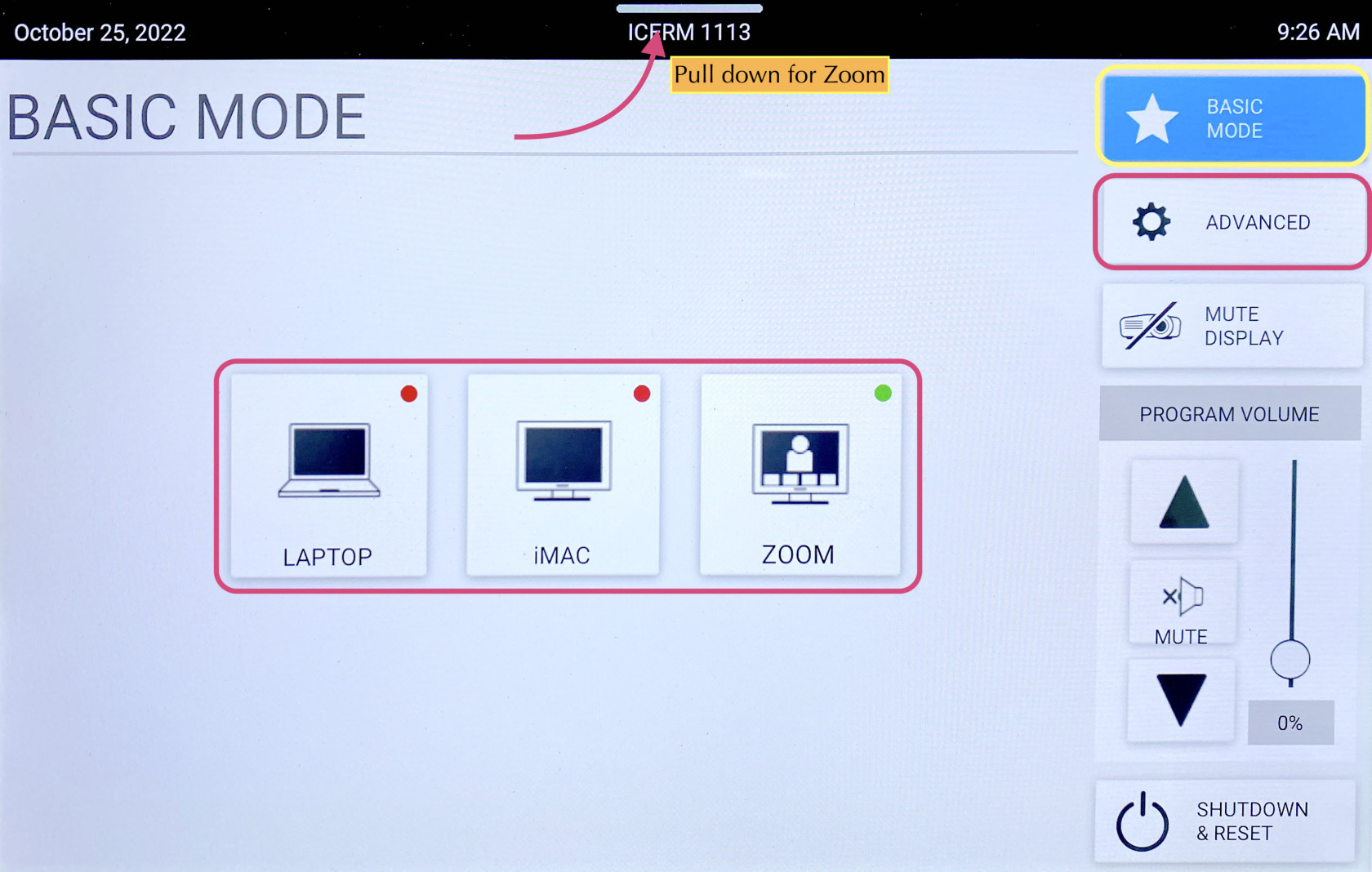
To start choose **Basic Mode**. Here you will have 4 options.
[](https://docs.icerm.brown.edu/uploads/images/gallery/2022-10/lkh1.jpg)
Laptop
1. Connect the laptop using the **HDMI/USB-c** cable in the middle of the conference table.
2. The projector should turn on, if not, press the **LAPTOP** button on the Creston control panel.
3. When you are all done with the room, please make sure to shut down the system. Go to the control panel, click **SHUTDOWN & RESET** in the bottom right corner, then hit **SHUTDOWN SYSTEM.**
iMac
1. Wake up the iMac in the back of the room using the wireless mouse/keyboard.
2. Press **iMAC** button on the Creston control panel
3. When you are all done with the room, please make sure to shut down the system. Go to the control panel, click **SHUTDOWN & RESET** in the bottom right corner, then hit **SHUTDOWN SYSTEM.**
**Note:**
If the mouse or keyboard is not responding, first check if they are turned on, then plug them in via lightning cable to charge.
Zoom
1. Click **Zoom** on Creston panel
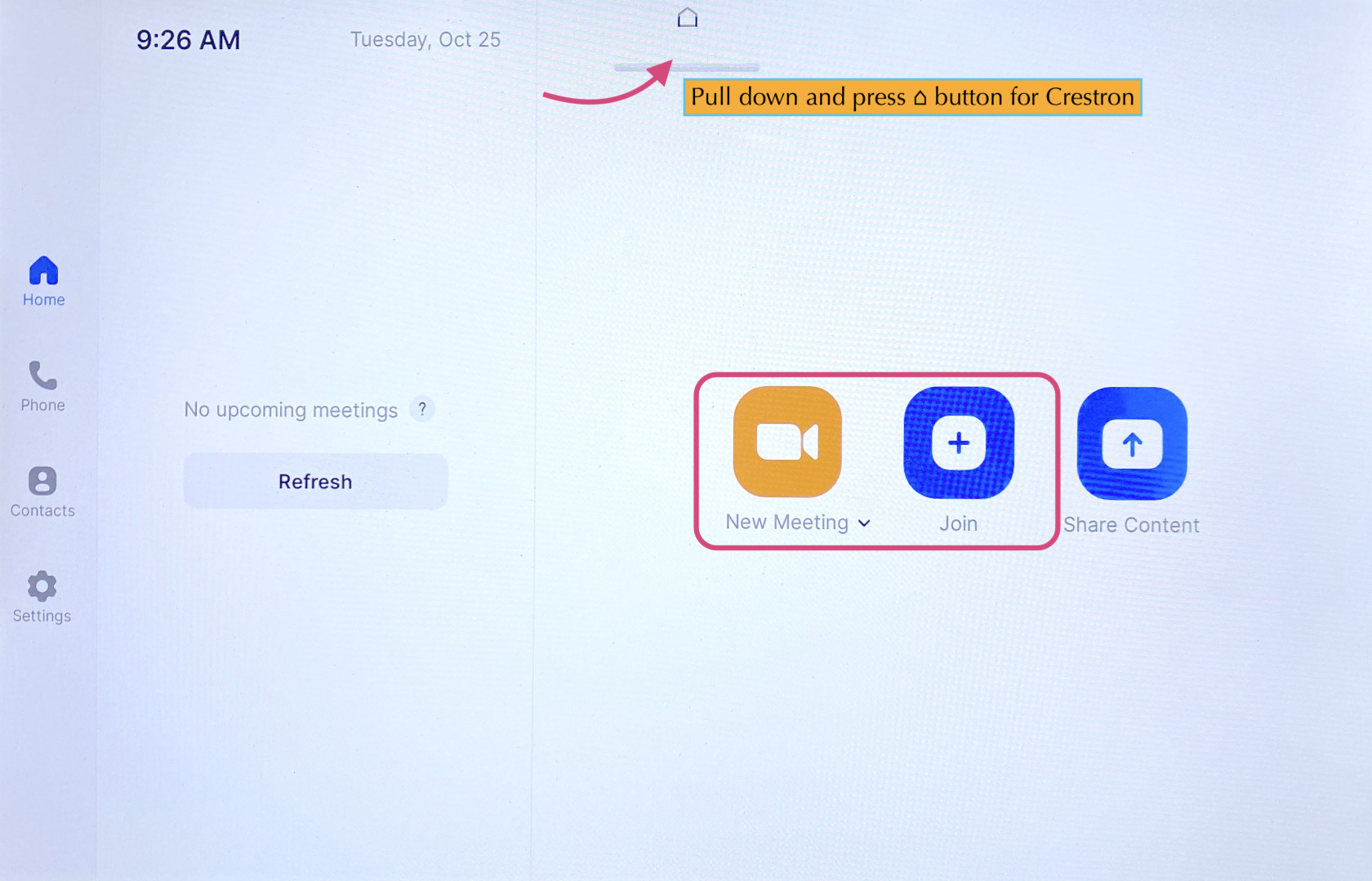
2. Pull down the tab at the top of the touchpad and click the **⌂** button to get to the Zoom panel.
3. Click the **Join** button and enter the code for an existing Zoom Meeting or click **New Meeting** to start a new Zoom Meeting.
[](https://docs.icerm.brown.edu/uploads/images/gallery/2022-10/HFw2.jpg)
Once in a Zoom meeting, to Share Content:
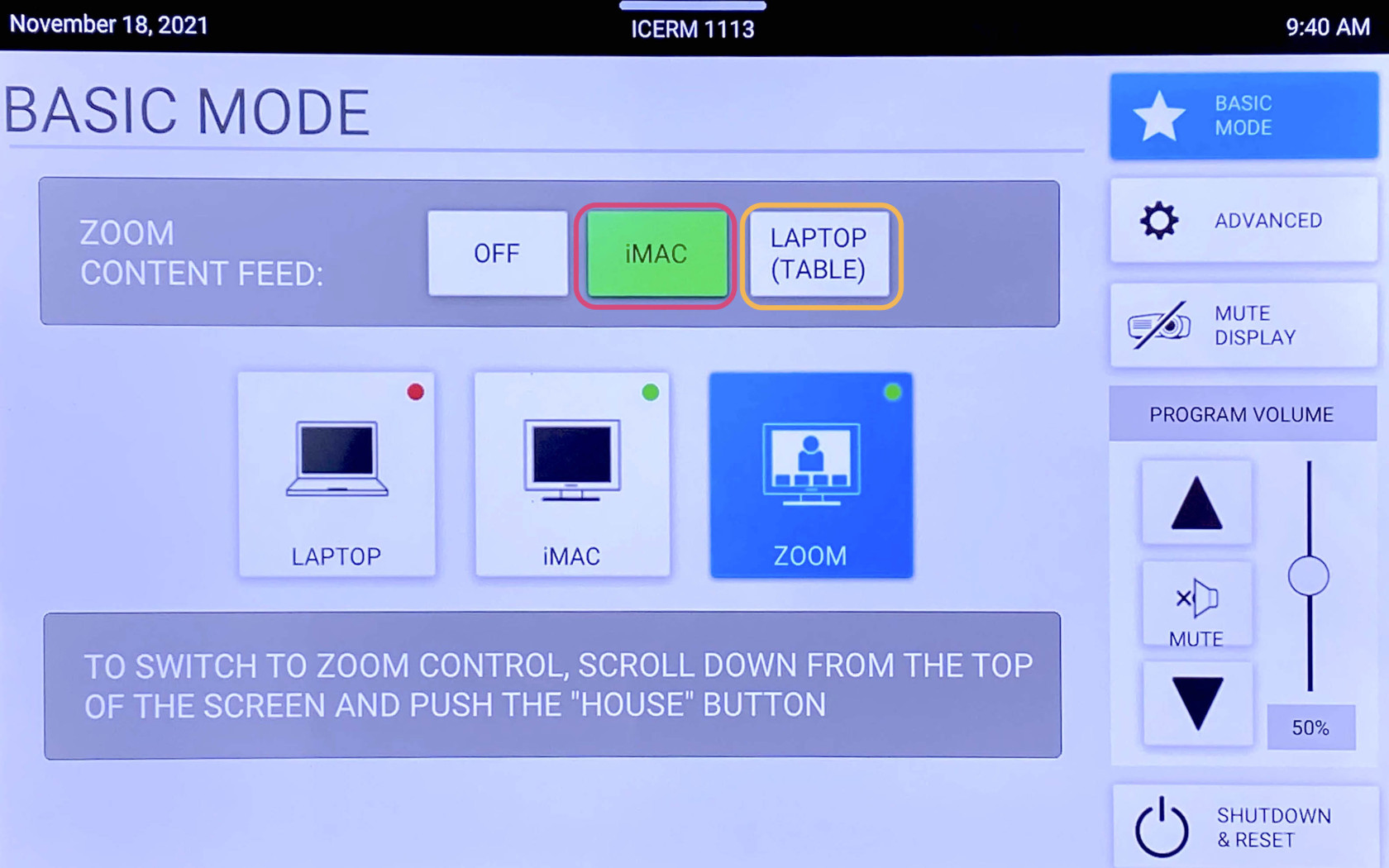
- From Laptop: plug the laptop in with the HDMI/USB-c cable in the center of the conference table. This should trigger content to start sharing from a laptop. If it doesn't - Press the **Share Content** button on the Zoom panel, then toggle back to the Crestron panel and chose **LAPTOP (TABLE)** for Zoom Content Feed.
- From IMac: Press **Share Content** on the Zoom panel. Toggle over to the Crestron panel and press **iMac** for Zoom Content Feed.
\*\*To stop sharing either unplug the laptop, press **OFF** for Zoom Content Feed, or press **Stop Share** on the Zoom panel.
**Note:**
To change the camera angle, toggle to the Creston panel, press **ADVANCED**, then **CAMERA CONTROLS**. Use the **PAN & TIL**T and **ZOOM** buttons to get the camera angle just right.
When finished with the Zoom meeting press **End**, then toggle back to the Crestron control panel click **SHUTDOWN & RESET** in the bottom right corner, then hit **SHUTDOWN SYSTEM.**
Blu-Ray
1. Locate the Blu-Ray player in the AV rack in the cabinet in the back of the room on the window side. Power on the Blu-Ray player and insert your Blu-Ray into the disc drive.
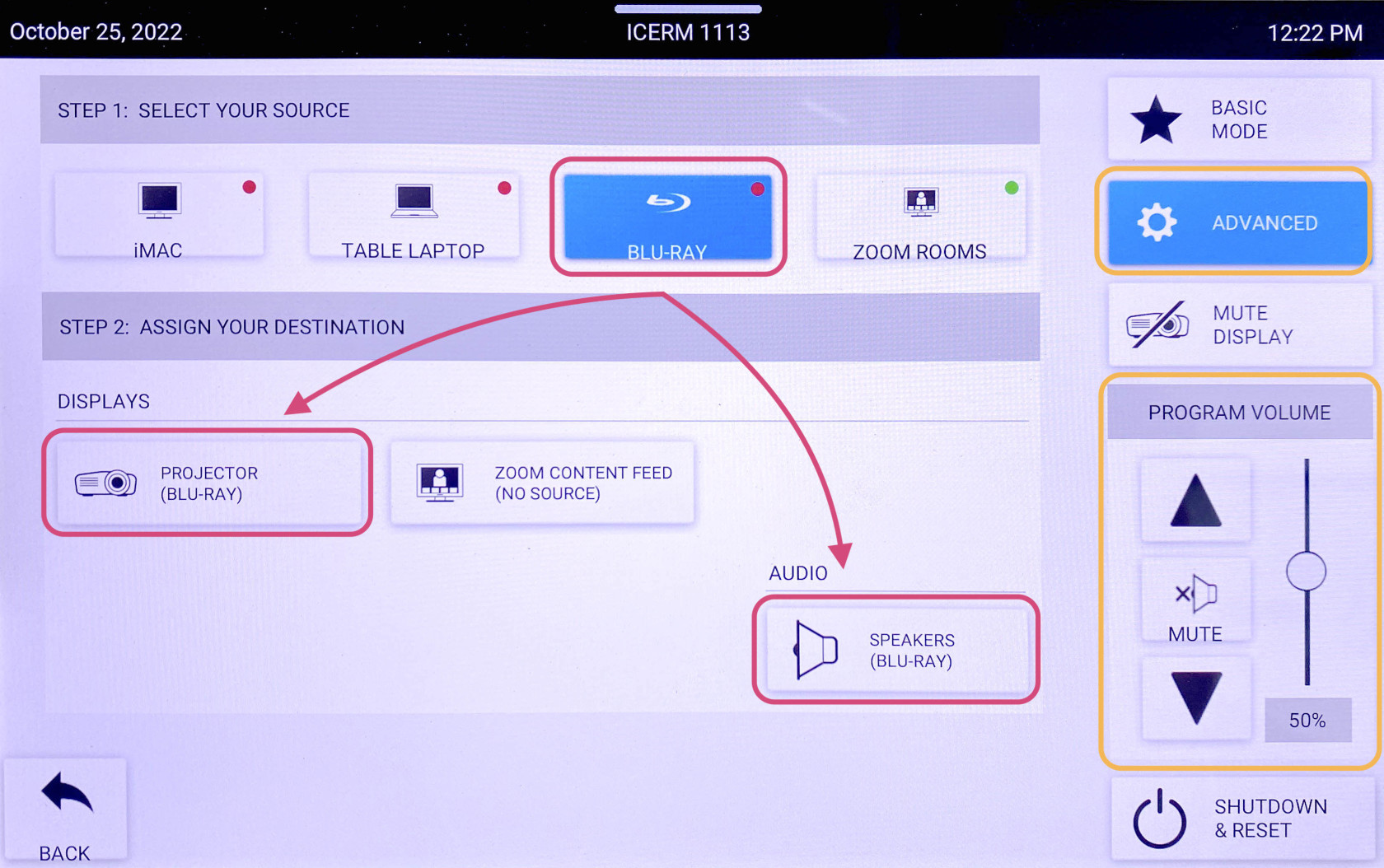
2. On the touchpad, within the Creston panel, click **ADVANCED**.
3. Click **AUDIO & VIDEO ROUTING**, tap **BLU-RAY** then hit the **Projector** button and **Audio** button so they both read (BLU-RAY). Then hit **BACK** or **ADVANCED**
[](https://docs.icerm.brown.edu/uploads/images/gallery/2022-10/jOlblu-ray.jpg)
4\. Click **BLU-RAY CONTROLS**, this will bring up a control panel that will allow you to navigate the player menu and control playback. Use the **PROGRAM VOLUME** to change to volume.
5\. When you are all done with the room, please make sure to shut down the system. Go to the control panel, click **SHUTDOWN & RESET** in the bottom right corner, then hit **SHUTDOWN SYSTEM.**
**\*\*Don't forget to eject your Blu-Ray disc from the player before leaving**