# Step-by-Step Printing Setup Instructions
This section provides detailed OS-specific setup instructions for installing ICERM printers on your laptop.
# Printing on macOS
**Before setting up your printers, please review the overview of [Printing at ICERM](https://docs.icerm.brown.edu/books/it-resources/page/printing-at-icerm "Printing at ICERM").**
*The following instructions assume you are connected to the Brown University network via [wireless](https://docs.icerm.brown.edu/books/it-resources/page/wireless-access-at-icerm "Wireless Access at ICERM") (Brown, Brown-Guest, or eduroam).*
### Setup Instructions
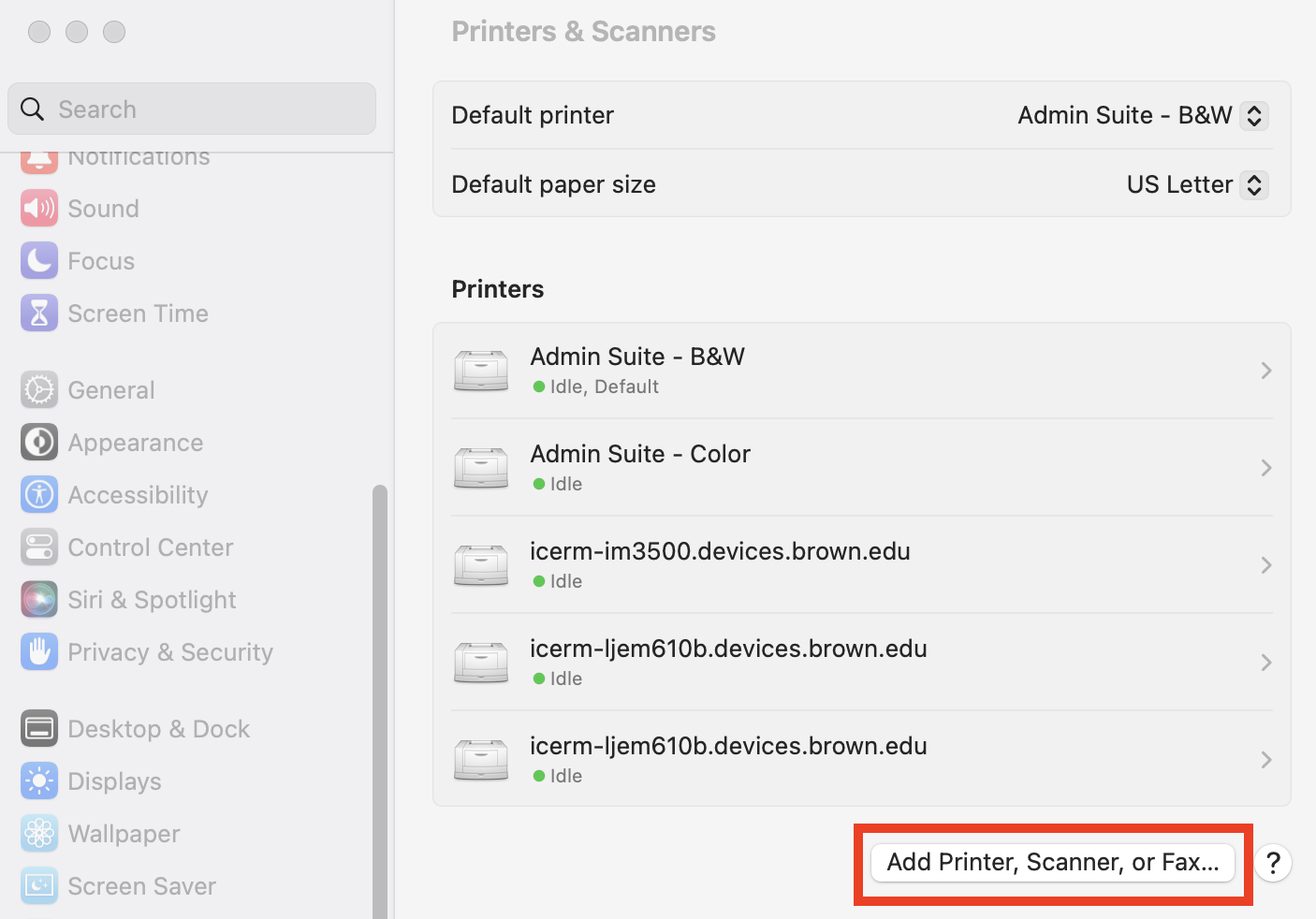
These photos are for macOS Ventura and newer. If your computer runs an older version of macOS, System Settings will look a bit different. For steps 1 & 2, Look for "Printers & Scanners" in the System Preferences, then click "Add Printer, Scanner, of Fax..." Steps 3 - 6 will be the same.
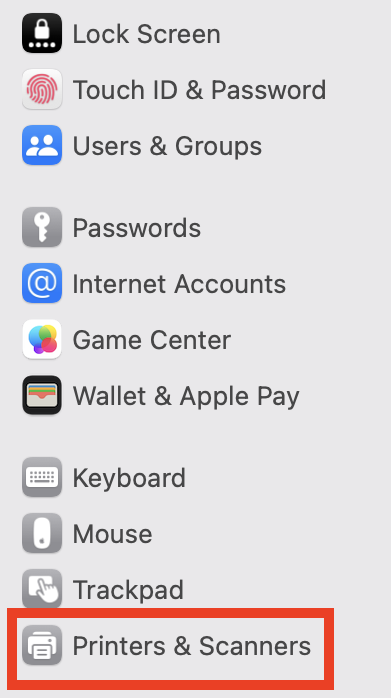
1\. Open **System Settings** (Apple Menu > System Settings) and click on the “Printers & Scanners” tab in the left sidebar.
[](https://docs.icerm.brown.edu/uploads/images/gallery/2023-08/BeCimage.png)
2\. Below the list of printers on the left, click the **Add Printer, Scanner, or Fax...** button to add a printer.
[](https://docs.icerm.brown.edu/uploads/images/gallery/2023-08/4Piimage.png)
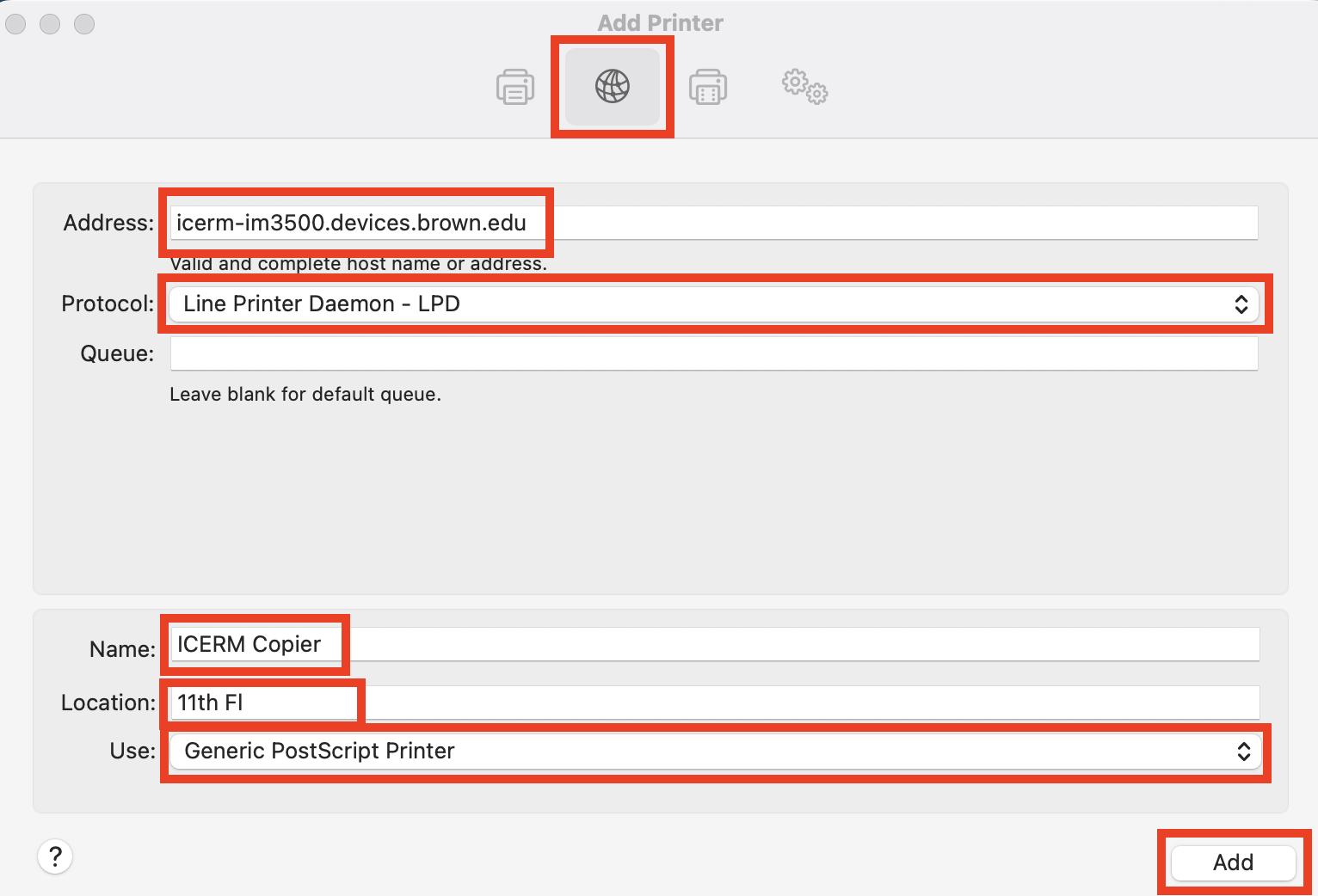
3\. In the add printer dialog that opens, click the “IP” tab and enter the printer’s hostname for the printer you wish to add, and select **Line Printer Daemon – LPD** in the **protocol** dropdown.
- 11th Floor Copier: **icerm-im3500.devices.brown.edu**
- 10th Floor LaserJet A: **icerm-ljem610a.devices.brown.edu**
- 10th Floor LaserJet B: **icerm-ljem610b.devices.brown.edu**
[](https://docs.icerm.brown.edu/uploads/images/gallery/2023-08/D5qimage.png)
4\. The system should then detect the printer and automatically fill the **Name** and **Use** fields at the bottom of the add printer window. If it does not, name the printer, select **Generic PostScript Printer** in the **Use** dropdown, then click **Add**.
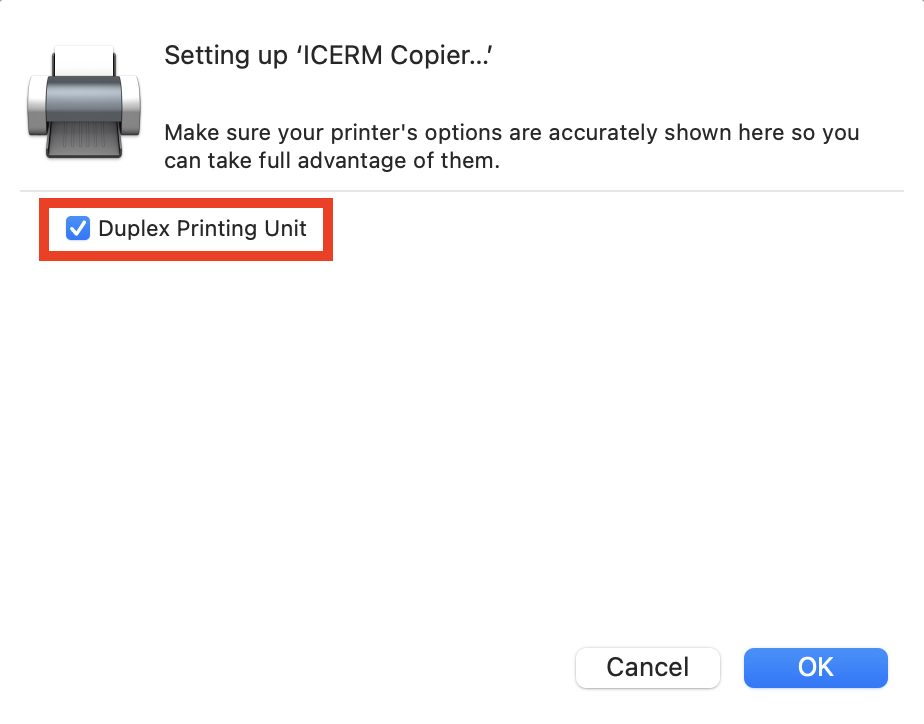
5\. A settings options window may appear. **Select “duplex printing” and save**.
[](https://docs.icerm.brown.edu/uploads/images/gallery/2023-08/Iovimage.png)
6\. The printer should be configured and ready to use. **Print a test page** to verify.
*If you have questions about these instructions or require further assistance, please contact the ICERM IT staff by dropping by the administrative offices or emailing [support@icerm.brown.edu](mailto:support@icerm.brown.edu?subject=Printing+Setup "support@icerm.brown.edu").*
# Printing on Windows
**IMPORTANT NOTE FOR Printing:** *ICERM uses North American Paper sizes for printing. Before sending a print job to a printer, please ensure that Letter (8.5x11) is selected. (A3 paper sizes will not work and cause the job to fail.)*
*Before setting up your printers, please review the overview of [Printing at ICERM](https://docs.icerm.brown.edu/books/it-resources/page/printing-at-icerm). The following instructions assume you are connected to the Brown University network via [wireless](https://docs.icerm.brown.edu/books/it-resources/page/wireless-access-at-icerm) (Brown, Brown-Guest, or eduroam)*
**Windows 11 instructions:**
1\) Navigate to the SEARCH field (located center bottom of screen), Type "printers", and Press Enter
2\) Click the "Add Device" button (This will cause a brief delay while your device searches for printers)
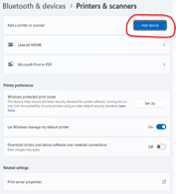
3\) Click the link "Add a new device manually", when the next pane appears, click the option "Add a printer using an IP address or Hostname" and click Next
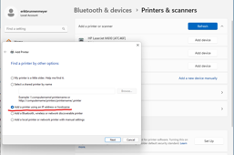
4\) In the Hostname or IP address field, Enter in the following information for the 10th floor LaserJet A Printer:
icerm-ljem610a.devices.brown.edu and Press Enter, the click Finish
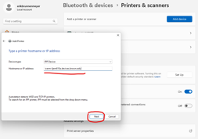
5\) Repeat steps 2 thru 4 and also add the following printers:
10th floor LaserJet B Printer: icerm.ljem610b.devices.brown.edu
11th floor copier: icerm-im3500.devices.brown.edu
**Windows 10 instructions:**
### Setup Instructions
1. Open **Settings** and choose **Devices:** [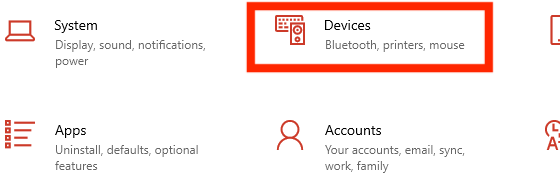](https://docs.icerm.brown.edu/uploads/images/gallery/2023-09/image.png)
2. Choose **Printers & scanners**: [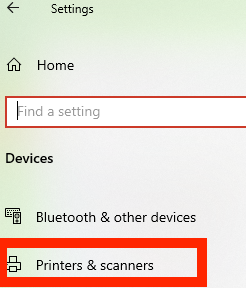](https://docs.icerm.brown.edu/uploads/images/gallery/2023-09/9Xyimage.png)
3. Choose **Add a printer or scanner**: [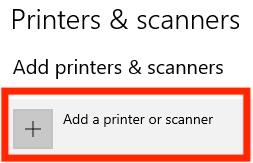](https://docs.icerm.brown.edu/uploads/images/gallery/2023-09/fJ4image.png)
4. Choose **The printer that I want isn't listed**
5. Select **Add a printer using an IP address or hostname**: [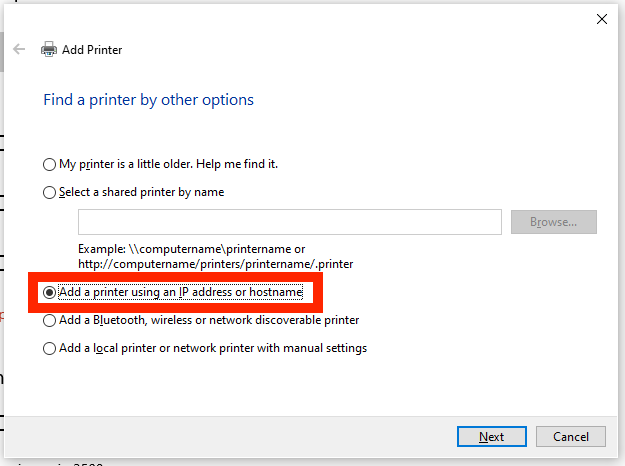](https://docs.icerm.brown.edu/uploads/images/gallery/2023-09/oKGimage.png)
6. On the next screen, enter:
- - Device Type: **Autodetect**
- Hostname or IP address: Write in the hostname of the printer you are adding -
- 11th Floor copier: **icerm-im3500.devices.brown.edu**
- 10th Floor LaserJet A**: icerm-ljem610a.devices.brown.edu**
- 10th Floor LaserJet B**: icerm-ljem610b.devices.brown.edu**
7. (**For the ICERM Copier only**): Choose the **Microsoft PS Class Driver** and click **Next**
8. Enter a printer name and click **Next**. Recommended names are:
- 11th Floor copier: **ICERM Copier**
- 10th Floor LaserJet A**: HP LaserJet M610A**
- 10th Floor LaserJet B**: HP LaserJet M610B**
9. Select **Do not share this printer**
10. Click **Next**
11. Click **Print a test page** to verify the new printer works
12. Click **Finish**
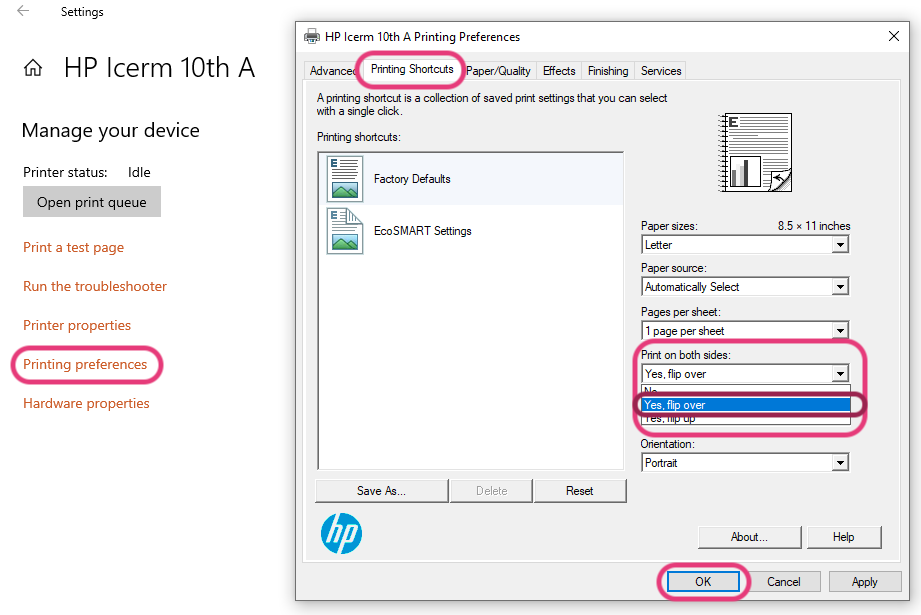
### Enabling Duplexing (Two-Sided Printing)
1\. Click **Start**- > **Settings** -> **Devices** -> **Printers & scanners** -> Click the printer you just added -> **Manage**
[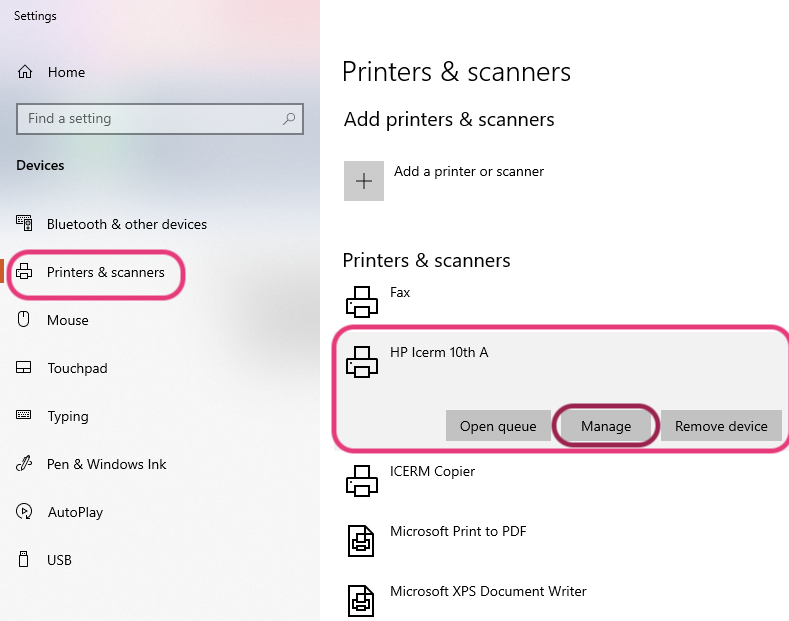](https://docs.icerm.brown.edu/uploads/images/gallery/2022-09/duplex-1.png)
2\. Click **Printing preferences**, and within **Printing Shortcuts** find Print on both sides, click **Yes, flip over**. Then hit **OK.**
[](https://docs.icerm.brown.edu/uploads/images/gallery/2022-09/C4Qduplex-2.png)
You did it!! 🥳
*If you have questions about these instructions or require further assistance, please contact the ICERM IT staff by dropping by the administrative offices or emailing [support@icerm.brown.edu](mailto:support@icerm.brown.edu?subject=Printing+Setup "support@icerm.brown.edu").*
# Printing on Linux
**Before setting up your printers, please review the overview of [Printing at ICERM](https://docs.icerm.brown.edu/books/it-resources/page/printing-at-icerm "Printing at ICERM").**
*The following instructions assume you are connected to the Brown University network via [wireless](https://docs.icerm.brown.edu/books/it-resources/page/wireless-access-at-icerm "Wireless Access at ICERM") (Brown, Brown-Guest, or eduroam).*
### Setup Instructions
1\. Open the New Printer dialog, and select **Network Printer** → **LPD/LPR**.
2\. Enter the hostname of the printer you wish to add, ignore other options/fields, then click “Forward”.
- 11th Floor Copier: **icerm-im3500.devices.brown.edu**
- 10th Floor LaserJet A: **icerm-ljem610a.devices.brown.edu**
- 10th Floor LaserJet B: **icerm-ljem610b.devices.brown.edu**
3\. The OS may detect the printer software. If not, search for **HP LaserJet Enterprise M610** for the 10th floor printers or **Ricoh IM3500** for the 11th Floor Copier. If your system does not have these drivers installed, you may use the **Generic PostScript Printer** drivers.
4\. All printers support duplexing (two-sided printing) - **make sure to select this duplex option** in the final printer setup step as it is typically not selected by default.
*If you have questions about these instructions or require further assistance, please contact the ICERM IT staff by dropping by the administrative offices or emailing [support@icerm.brown.edu](mailto:support@icerm.brown.edu?subject=Printing+Setup "support@icerm.brown.edu").*